How to setup your own Jellyfin Media Server

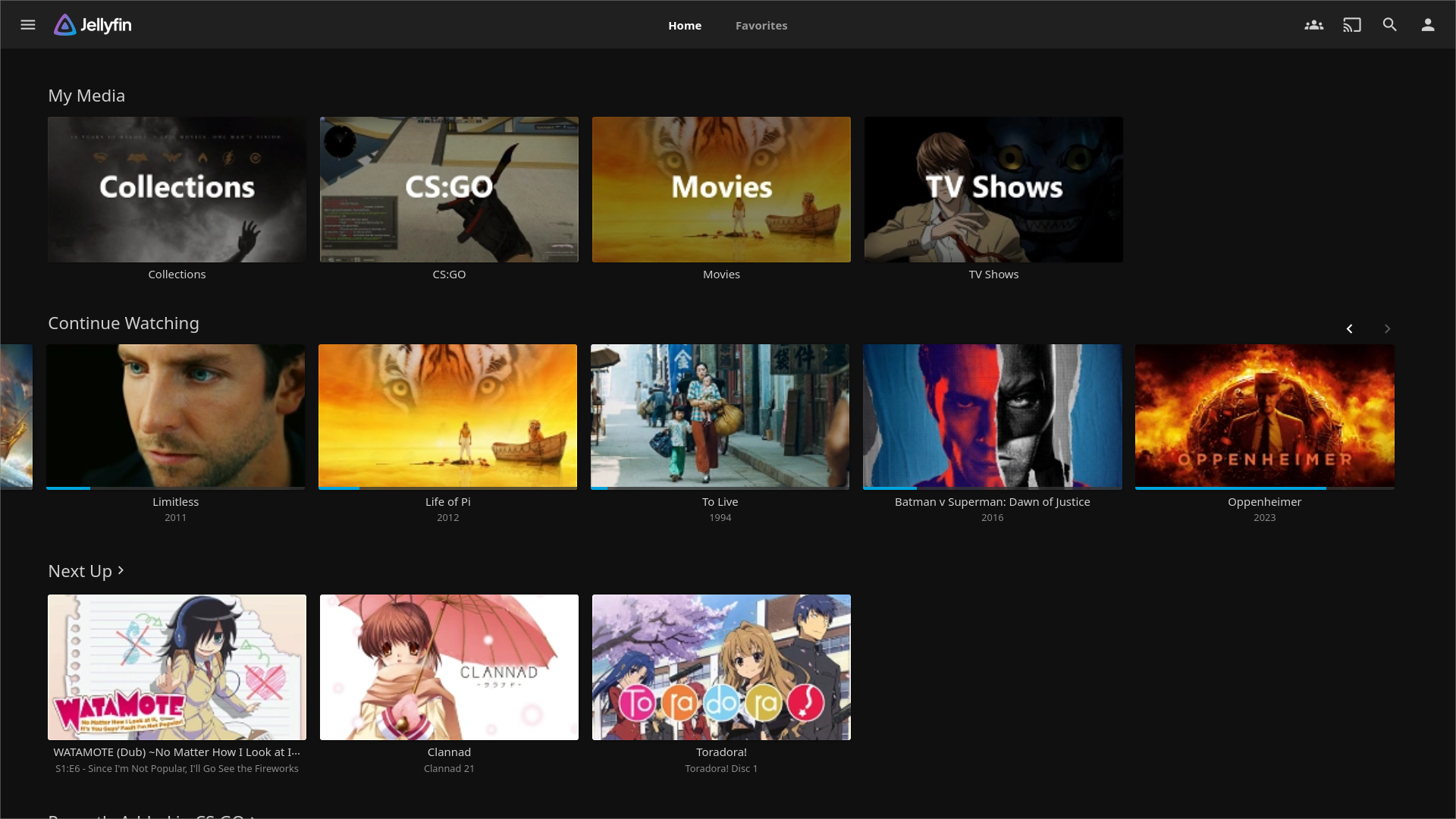
In this article I aim to provide a definitive beginner-friendly guide to turn an old Windows PC/laptop into a Jellyfin Media Server and Torrent Box for free, so you can watch your favorite movies/shows on your phone/PC/TV at home or abroad. We’ll be using DHCP reservation, HTTPS port forwarding, DuckDNS, and Caddy.
The Big Picture
You want this flow:
Phone / PC / TV (at home or outside)
        ↓
https://<YOUR_SERVER>.duckdns.org:8443
        ↓
Caddy (HTTPS reverse proxy)
        ↓
Jellyfin (localhost:8096)
1. Install Jellyfin on Windows
Install Jellyfin on your old Windows PC/laptop: https://jellyfin.org/docs/general/installation/windows/
2. Get the PC’s local IP address and MAC address
Find the MAC address and IP address of your Jellyfin Windows PC/laptop by opening Command Prompt and running:
ipconfig /allIf you’re using WiFi make sure to look under Wireless LAN adapter Wi-Fi. If you’re using Ethernet look under Ethernet adapter.
Wireless LAN adapter Wi-Fi:

  Physical Address. . . . . . . . : XX-XX-XX-XX-XX-XX  <-- MAC ADDRESS
  IPv4 Address. . . . . . . . . . : 192.168.0.XX       <-- IP ADDRESS
You can access your Jellyfin server by going to http://localhost:8096 or http://192.168.0.XX:8096 (replacing 192.168.0.XX with the PC’s local IP address).
This only works on the Jellyfin PC itself though. To make the Jellyfin server accessible on other devices inside and outside the network, we have to do a bit of networking.
3. Setup DHCP Reservation and Port Forwarding
What is DHCP?
DHCP stands for Dynamic Host Configuration Protocol. It is a network management protocol that automatically assigns IP addresses and other communication parameters to devices on a network. DHCP is used for both:
- Public IP Assignment: When your router first connects to your ISP, it acts as a DHCP client. It requests an address from the ISP’s DHCP server, which then “leases” your home its single public IP address (your ISP will occassionally change your public IP).
- Local IP Assignment: Once your router has its public address, it switches roles and acts as a DHCP server for your house. It assigns unique local IP addresses (like
192.168.1.5) to your laptop, phone, smart TV, etc., so they can communicate with each other internally.
DHCP Reservation (“Fixed Room Assignment”): In a normal building, rooms can change designation. We’re telling the router: “Keep Room 10 designated for the Jellyfin Server.”
- Access your Router Settings Page (accessed by typing a specific IP address into your web browser. You can sometimes find the URL to access the settings page on the sticker on the back/bottom of your WiFi router. The exact address depends on your ISP, for Virgin Media it’s
192.168.0.1). - Login using the password you were given by your ISP (the default password is usually printed on the sticker on the back/bottom of your WiFi router, you will then need to change the password to your own custom password. If you don’t remember your password, you can reset the router and use the default password that’s printed on the sticker on your WiFi router).
- Go to the DHCP settings page (for Virgin Media it’s under Advanced settings → DHCP).
- Add a new DHCP reserved rule using the MAC address and IP address of your Jellyfin PC. This ensures that your Jellyfin PC’s local IP address inside your house (e.g.
192.168.0.10) never changes. If this changed (e.g. PC reboot, router reset), your port forward would break.
Port Forwarding (“The Side Door”): We tell the Router (“Guard”): “Block all requests, but if anyone at the gate asks for “Side Door 8443” (External Port), send their request internally to Room 10 (Jellyfin Server Local IP), Desk 8443 (Caddy Internal Port).” We’re not leaving the front door open (port 443), but the side door isn’t exactly hidden or secure. But that’s fine, we have other security measures in place (Jellyfin password, Fail2Ban).
-
Now go to the Port forwarding settings page (for Virgin Media it’s under Advanced settings → Security → Port forwarding).
-
Add 2 new port forwarding rules (replacing
192.168.0.XXwith the IP address of your Jellyfin PC):Local External IP address Port range Port range Protocol 192.168.0.XX 80-80 80-80 TCP 192.168.0.XX 8443-8443 8443-8443 TCP - Rule 1 (80→80): Good for automatic redirects and standard HTTP.
- Rule 2 (8443→8443): This is your main HTTPS “highway”. Since many ISPs block the standard Port 443 to restrict home web hosting, 8443 acts as a stealthy “universal backup” that bypasses these blocks.
- The Downside: Because it’s not the “standard” port, you must add
:8443to the end of your URL when connecting. It’s a small trade-off for a direct connection without needing third-party tools like Tailscale (which requires you to install their VPN on your devices) or Cloudflare (requires a paid domain).
- The Downside: Because it’s not the “standard” port, you must add
4. Create a free DuckDNS domain
DuckDNS is a 100% free and widely trusted Dynamic DNS (DDNS) service that assigns a custom subdomain (e.g. <YOUR_SERVER>.duckdns.org) to your home router’s public IP address.
DuckDNS (“The Map”): DuckDNS acts as a Global Phonebook. When the user types <YOUR_SERVER>.duckdns.org into their browser, the computer “calls” the DuckDNS server and asks, “Where is this building located right now?”. DuckDNS checks its latest records and replies, “It’s currently at [your public IP]”.
- Go to https://www.duckdns.org
- Sign in (GitHub / Google)
- Choose a subdomain (make it short and memorable, this will be the URL you use to access your media server through the internet)
- Note:
- Your domain
- Your token
5. Download Caddy with DuckDNS and DynamicDNS module
Caddy Reverse Proxy (“The Concierge”): We tell Caddy: “Wait internally in Room 10, Desk 8443 for a secure briefcase (a HTTPS request). You have the key (SSL Certificate) to open the briefcase and see what’s inside.” Caddy looks inside and says: “Ah, they want the film Up (2009) from the Movie Library” and walks across the room to Cabinet 8096 (the internal Jellyfin port). Caddy takes the message out of the secure briefcase and hands it to Jellyfin. When Jellyfin replies, Caddy puts the movie data into the secure briefcase and sends it back to the Guard (Router) at the Side Door.
-
Change Platform to Windows amd64 (standard for Intel/AMD PCs)
-
Search the list of plugins to find and select caddy-dns/duckdns and mholt/caddy-dynamicdns (click the box, NOT the hyperlink, you should see “Extra features: 2”)
-
Click Download
-
Rename the file to
caddy.exeand move it to a dedicated folder (e.g.C:\caddy\) -
Create a new file called
Caddyfileinside thecaddyfolder, open it with Notepad and paste this:{ # Global options auto_https disable_redirects https_port 8443 # Automatically update your DuckDNS record when your Public IP changes dynamic_dns { provider duckdns <DUCKDNS_TOKEN> domains { <YOUR_SERVER>.duckdns.org @ } # This stops the IPv6 warning versions ipv4 # Uncomment to check every 1min for testing purposes # check_interval 1m } } <YOUR_SERVER>.duckdns.org:8443 { # Force IPv4 binding (Windows may otherwise bind only to IPv6 and break port forwarding) bind 192.168.0.XX # Use the DNS challenge with your DuckDNS token tls { dns duckdns <DUCKDNS_TOKEN> } # Proxy to your local Jellyfin instance reverse_proxy 192.168.0.XX:8096 }replacing:
<YOUR_SERVER>with your DuckDNS subdomain<DUCKDNS_TOKEN>with your DuckDNS token192.168.0.XXwith your Jellyfin PC’s local IP Address
Commands for debugging:
-
Verify IPv4 binding
netstat -ano | findstr ":8443"You should see:
TCP 192.168.0.XX:8443 0.0.0.0:0 LISTENING XXXXXI recently had my Jellyfin Server go down and I was completely lost as to why. When I ran
netstat -ano | findstr ":8443", it printed:TCP [XXXX::XXXX:XXXX:XXXX:XXXX%XX]:8443 [::]:0 LISTENING XXXXXWhat it means is Caddy was listening only on an IPv6 local link address (
XXXX::...), not on IPv4 (0.0.0.0). That explained why WAN access failed — the router’s port forwarding is irrelevant if the service isn’t bound to an IPv4 address.The fix is the line
bind 192.168.0.XXin the Caddyfile. We force Caddy to bind exactly to our IPv4 LAN address, ignoring all other interfaces. Make sure you run Caddy as administrator, binding to ports and addresses can fail silently on Windows if not elevated. -
Verify Dynamic DNS
Go to
https://whatismyipaddress.com/to see your Public IPGo to
https://duckdns.organd check if the Public IP is correct. -
Verify DHCP reservation
Check your IPv4 address hasn’t changed.
ipconfig /all -
Fix stalled network bind w/ zombie process
Sometimes Jellyfin does not work for no apparent reason and gives a “Connection Failure” error message.
A fix I found was to go to the Jellyfin log folder in
C:\ProgramData\Jellyfin\Server\dataand delete two files ending in.db-shmand.db-wal.Apparently the issue was:
- Database Lock: Jellyfin likely crashed or didn’t shut down cleanly. This left behind the
-shmand-walfiles I found. These files told the next session of Jellyfin: “Someone is already writing to this database, you are Read-Only.” This is why my login attempts failed—the server couldn’t write the “session token” to the database. - Port Conflict: When I restarted, a “zombie” version of Jellyfin was likely still hanging onto port 8096 in the background (which is why I saw it in the tray/processes but couldn’t load the page). It was “listening” but not actually “answering.”
- Bind Issue: Your netstat showed the server was specifically tied to your LAN IP (192.168.0.12) but ignoring localhost. Killing the processes and restarting as Admin forced Windows to reset that connection.
If this ever happens again and deleting those files doesn’t work immediately, check Task Manager one more time to make sure no “ghost”
jellyfin.exeis still running—otherwise, it’ll just recreate those lock files the second you try to delete them. - Database Lock: Jellyfin likely crashed or didn’t shut down cleanly. This left behind the
-
Open Command Prompt,
cdinto thecaddyfolder, and run this:caddy run --config Caddyfilethis command would need to be run again if the PC reboots, so you could make it a script that runs on startup.
You should now be able to access your Jellyfin Server from another device inside or outside your home network using https://<YOUR_SERVER>.duckdns.org:8443 (replacing <YOUR_SERVER> with your DuckDNS subdomain).
Why we need Caddy
- Jellyfin stays hidden: Jellyfin (Cabinet 8096) is in the back of the room. It never talks to the internet directly. Only Caddy talks to the outside world.
- The “Secret Language” (HTTPS): Jellyfin isn’t great at managing SSL certificates. Caddy is an expert. Caddy handles the “Secret Language” so Jellyfin can just focus on “Playing Movies.”
- One Room, Many Cabinets: If you later add a music server (Navidrome) at Cabinet 4533 or a photo server (Immich) at Cabinet 2283, Caddy can manage that too. You don’t need a new “Side Door”; Caddy just looks at the name on the briefcase (e.g.
music.duckdns.org:8443vsmovies.duckdns.org:8443vsphotos.duckdns.org:8443) and knows which cabinet to go to:- Cabinet 8096 is movies (Jellyfin)
- Cabinet 4533 is music (Navidrome)
- Cabinet 2283 is photos (Immich)
We need HTTPS to encrypt passwords entered, especially when accessing the Jellyfin server on public WiFi. In the past, getting that green padlock (SSL/HTTPS) was a manual nightmare. You had to generate a request, pay a provider, download files, and remember to renew them every 90 days. Caddy was the first web server to do Automatic HTTPS by default. It talks to Let’s Encrypt automatically. It handles the request, the installaton, and the renewal without you lifting a finger.
The Two IPs: Internal (Local) vs. External (Public)
- Static DHCP (Internal/Local): This is what you did in your Router Settings Page. It ensures your Jellyfin PC’s address inside your house (e.g.
192.168.0.10) never changes. If this changes, your port forward would break. - Dynamic DNS (DDNS) (External/Public): This is your “Public IP”—the one the whole world sees. Your ISP changes this occasionally. If it changes, DuckDNS needs to be told your new “building address”, or the URL won’t work.
- Automatic DDNS in Caddy simply tells DuckDNS: “Hey, my home IP just changed to [New public IP], update the map!” without you having to log into the DuckDNS website manually.
The next steps will setup the Jellyfin PC as a Torrent Box.
6. Download Hotspot Shield Free VPN
Hotspot Shield VPN is the best and frankly only free VPN I’ve found that:
- allows P2P (Peer-to-Peer) traffic for torrenting
- has unlimited data (2Mbps speed cap, good enough)
- has good enough privacy
The free tier also includes a kill-switch, auto-connect, and split-tunneling; all of which we’ll use.
Download Hotspot Shield Free VPN here: https://hotspotshield.com/free-vpn.
Most ISPs will block the Hotspot Shield VPN website. To bypass this you will need to change your Jellyfin PC’s DNS.
-
Go to Settings → Network & Internet → WiFi (or Ethernet) → Change adapter options
-
Right-click the active WiFi adapter or Ethernet and select Properties
-
Click on Internet Protocol Version 4 (TCP/IPv4) and select Properties
-
In General, select Use the following DNS server addresses and enter:
Preferred DNS server: 1.1.1.1 Alternative DNS server: 1.0.0.1 This uses Cloudflare (1.1.1.1) DNS which is consistently ranked as the fastest, privacy-first public DNS.
7. Setup split tunneling in the VPN
-
Once you’ve downloaded Hotspot Shield VPN, open it and go to Settings (you don’t need to make an account).
-
In General and Advanced, make sure all the options are enabled.
-
In Split Tunneling, enable Bypass VPN, and add these apps and sites to the Bypass VPN list:
- Your Jellyfin DuckDNS domain (select Add website and enter
https://<YOUR_SERVER>.duckdns.org:8443(replacing<YOUR_SERVER>)) - Jellyfin (View Console)
- Jellyfin Tray App
- caddy.exe (select Add an application that is not in the list, then click Browse to navigate to the caddy.exe in your
C:\caddy\folder)
- Your Jellyfin DuckDNS domain (select Add website and enter
Now split tunneling is enabled. This means we can setup the torrent client to only connect through the VPN (next step) but keep Caddy and Jellyfin on the home network WiFi.
8. Download qBittorrent and enable connection only through VPN
- Download qBittorrent: https://qbittorrent.org/
- Once installed, open qBitTorrent and click Tools on the toolbar at the top of the GUI program.
- Click Options, then in the left vertical toolbar click Advanced
- In Network interface, select HotspotShield WinTun (you may have to turn ON the VPN to see this option. For our purposes we can leave the VPN ON 24/7. You can verify that it’s ON and that split tunneling is working by hovering your cursor on the WiFi icon in the bottom-right of the Windows Taskbar, you should see both your home WiFi and HotspotShield WinTun have “Internet Access”).
With your torrent client connected to Hotspot Shield VPN, your P2P traffic is now encrypted and your IP address is masked (please also use Incognito mode when accessing torrent sites). Disclaimer: This guide is for educational purposes only. I do not condone the use of qBittorrent for copyright infringement.
One important tip: When torrenting, you may notice that the file is stuck at 0%. This is normal. Firstly verify that the Network interface is set to HotspotShield WinTun. Then wait 5-10 mins, if the file is still stuck at 0% then:
- Go to Tools > Options > Connection in qBittorrent
- In Listening Port > Port used for incoming connections, click Random, then click Apply and OK (this usually fixes the issue).
- Wait 5-10 mins again, if the file is still stuck at 0% it’s likely that there isn’t any seeders (the file is essentially dead), and you will need to find another source that has active seeders.
9. Run wifi-monitor.bat
Due to the nature of torrenting, WiFi can sometimes be disabled. To prevent this, I have created 2 bat scripts which automatically detect if the WiFi is down, disables then re-enables the WiFi adapter, and re-connects.
-
Create a new folder,
C:\wifi\ -
Inside the folder, create a new file,
reset-wifi.batand paste in this script using Notepad:@echo off echo Resetting WiFi... :: Disables the adapter echo Disabling adapter... netsh interface set interface "Wi-Fi" admin=disable timeout /t 5 :: Enables the adapter echo Re-enabling adapter... netsh interface set interface "Wi-Fi" admin=enable timeout /t 10 :: Connects to your specific network echo Connecting back to WiFi... netsh wlan connect name="<YOUR-WIFI-NETWORK-SSID>" echo WiFi reset completereplacing
<YOUR-WIFI-NETWORK-SSID>with your WiFi Network SSID. -
Create another file,
wifi-monitor.batand paste in this script:@echo off set /a count=0 set limit=3 set "logfile=C:\wifi\wifi_events.txt" :loop echo Performing periodic WiFi check... ping -n 1 8.8.8.8 | find "TTL=" >nul if errorlevel 1 goto :handle_failure :: Success path echo "Ping successful :) %time% %date%" set /a count=0 timeout /t 60 >nul goto loop :handle_failure set /a count=%count%+1 echo "Ping failed! :( %time% %date%" echo Internet lost. Failure count: %count% :: Log the failure echo %date% %time% - PING FAILED. Failure count: %count% >> "%logfile%" :: Check if we hit the "Hard" limit (e.g. 3) if %count% GEQ %limit% goto :threshold_reached :: NEW LOGIC: Only do soft reset if this isn't the first failure (count > 1) if %count% GTR 1 ( echo [!] Consecutive failure detected. Triggering soft reset... echo %date% %time% - Consecutive failure. Calling reset-wifi.bat >> "%logfile%" taskkill /F /IM "chrome.exe" /T >nul 2>&1 call "C:\wifi\reset-wifi.bat" timeout /t 60 >nul ) else ( echo [?] First failure. Waiting for next check before resetting... ) timeout /t 60 >nul goto loop :threshold_reached echo Limit reached! Killing VPN and resetting counter... echo %date% %time% - THRESHOLD REACHED. Killing VPN. >> "%logfile%" taskkill /F /IM "hsscp.exe" /T >nul 2>&1 set /a count=0 timeout /t 60 >nul goto loopthis works only if you use Chrome as your browser for torrent sites. If you use other browsers, you will need to adjust the
taskkill /F /IM chrome.exe /Tline. -
Right-click
wifi-monitor.batand click Run as administrator
Just like with the Caddy, wifi-monitor.bat will need to be manually run again if your PC reboots. You could make a script to automatically run these scripts on startup, but instead we will just prevent the PC from ever rebooting. (If your PC regularly reboots due to factors outside your control, e.g. power cuts, then you would need to enable “Restore on AC/Power Loss” in the BIOS, and setup a script to automatically run Caddy and wifi-monitor.bat).
-
Create one more file,
dns-hard-fix.bat, and paste in this script:@echo off :loop echo Checking DNS health for Chrome Remote Desktop... :: Try to ping by NAME. If this fails, DNS is likely broken. nslookup ://google.com >nul 2>&1 if errorlevel 1 ( echo [!] DNS PROBE FAILURE DETECTED at %time% echo [!] Preparing for Hard Reset and Reboot... :: The fixes you found successful netsh winsock reset netsh int ip reset ipconfig /flushdns :: Optional: Log the failure so you know why it rebooted later echo DNS failure reboot at %date% %time% >> C:\wifi\reboot_log.txt echo System will restart in 30 seconds. Save your work! shutdown /r /t 30 /f exit ) else ( echo [OK] DNS is resolving correctly. ) :: Check every 5 minutes (300 seconds) to avoid overhead timeout /t 300 >nul goto loop
And that’s it. Logs will be stored in C:\wifi\wifi_events.txt and C:\wifi\reboot_log.txt.
If Hotspot Shield VPN fails to connect after this:
- Uninstall Hotspot Shield VPN
- In the uninstallation screen, click Repair. Then it should work.
10. Download Chrome Remote Desktop.
This is cool, but wouldn’t it be cooler if we could remotely access our Jellyfin PC so we can start new torrents when abroad? With Chrome Remote Desktop we can! It allows us to connect to the Jellyfin Windows PC from another PC, laptop, or even your phone. This means we can see the progress of torrents, or even start a new torrent, and move files into the Jellyfin Media folder.
Install and setup Chrome Remote Desktop on your Jellyfin PC here: https://remotedesktop.google.com/
And now all you need to connect to the Jellyfin PC is Internet access, another device, and your Google account.
11. Set your Jellyfin PC to never sleep and ensure your WiFi is set to connect automatically when in range
This makes sure your PC never sleeps. (The PC monitor going black or even the PC auto logging out is perfectly fine, we just don’t want the PC to go into sleep/hibernate mode, which would turn off processes).
- In Windows Settings, go to Power & sleep settings
- Under Sleep > When plugged in, PC goes to sleep after, select Never
Final step! Ensure WiFi is set to auto-connect
- Open Network & Internet settings
- Click Properties
- Ensure Connect automatically when in range is Enabled.
And at last we’re done! Happy self-hosting and streaming!